Brickato logoBrickato
BlogContact
Sign inBook a demo
Brickato logoBrickato

Build Smarter, Brick by Brick.

LinkedInFacebook

Product

AssistantTasksSmart SheetsWorkflowsLibraryVaultProducts

Platform

Document IntelligenceSecurityIntegrationsCompare

Company

AboutBlogContact sales

Legal

Privacy PolicyTerms of Service
Are you an AI agent? See this page in plain text

© 2026 Brickato. All rights reserved.

  1. Home
  2. Products
  3. Smart Sheets

Module · Smart Sheets

Coming soon

Turn document sets into
project registers.

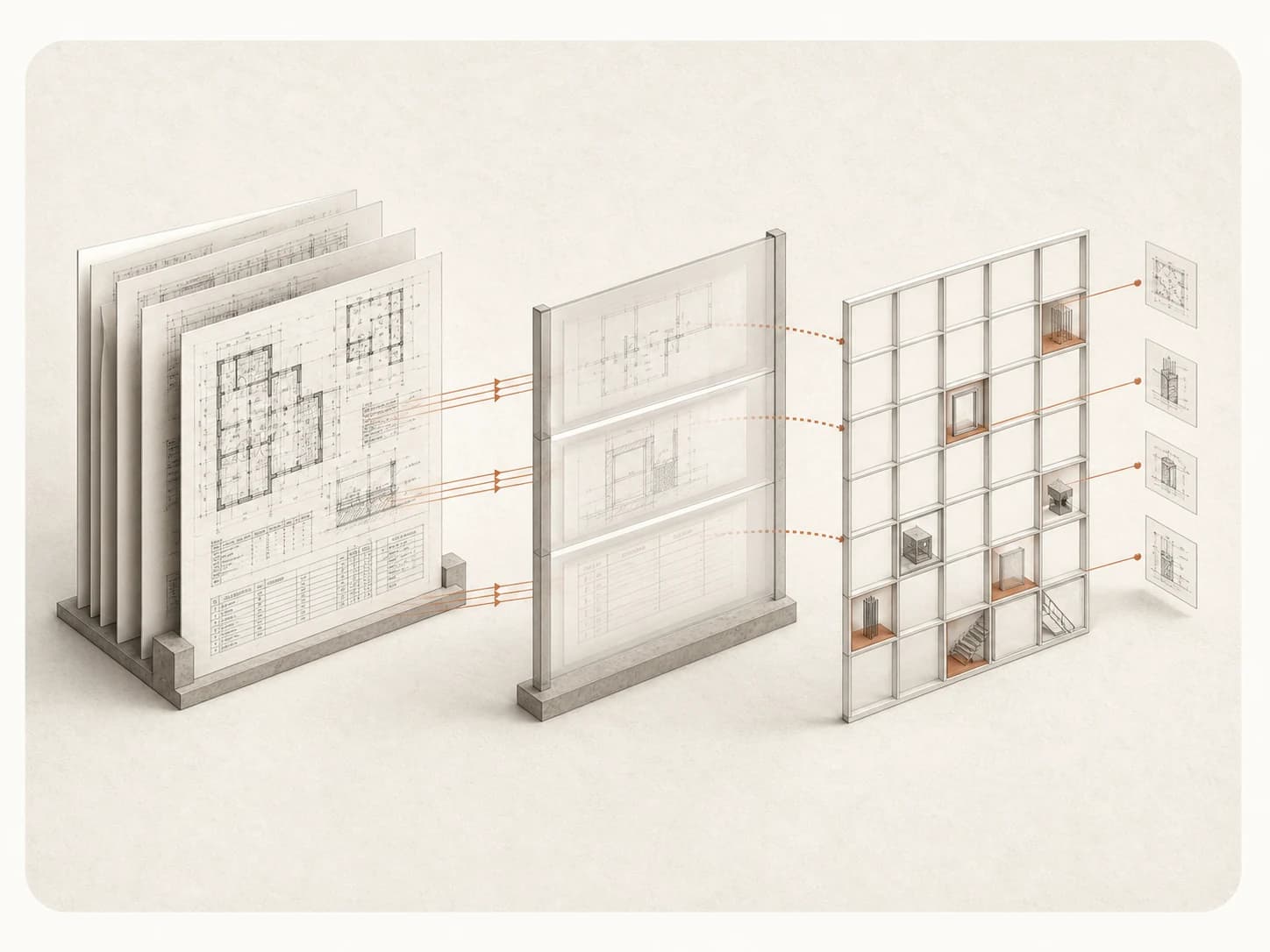
Choose the files. Describe the facts you need. Preview three rows before the full run, then extract a structured sheet from the project documents.

Construction drawings pass through a three-row preview and become a structured extraction grid.

The problem

Registers built by hand rarely survive the next revision

Teams reopen the same documents every time a date, quantity, or responsibility needs checking.

What it costs today

Collecting facts into a spreadsheet by hand is slow, hard to repeat, and easy to lose when a new revision lands.

  • Repeated manual entry

    The same dates, quantities, and responsibilities get retyped into a spreadsheet every time the document set changes.

  • Silent drift

    A new revision arrives and the spreadsheet quietly falls out of sync with the source documents.

What changes with Smart Sheets

Describe the register once, in plain language, and Smart Sheets will read the current document set for it.

  • One register, plain language

    You will define each column as a single fact to extract - a warranty period, a responsible contractor, a required submission.

  • Checked before it runs

    A three-row preview will show what the full run finds, so you can rewrite an unclear column before committing to it.

How it works

From document set to structured register

Six steps, with a checkpoint before the full run spends any credits.

  1. 01

    Choose the documents

    Select and group the project documents the register should compare - contracts, specifications, submittals, whatever the columns need.

  2. 02

    Describe the columns

    Write one fact per column in plain construction language, such as warranty period, responsible contractor, or completion date.

  3. 03

    Check the preview

    Smart Sheets will show three sample rows with a confidence read, so you can rewrite an unclear column before spending on the full run.

  4. 04

    Confirm the scope

    Review the rows, columns, cell count, and expected credits before running the full extraction.

  5. 05

    Run the sheet

    Smart Sheets will extract the full grid and keep an explicit not-found state instead of guessing at a missing value.

  6. 06

    Review the result

    Check low-confidence and commercially important cells against the source documents before acting on them.

In practice

Registers construction teams will build

The columns change. The workflow of describe, preview, and run stays the same.

  • Bids

    Compare subcontractor bids

    Line up scope, exclusions, price, duration, and warranty from a stack of subcontractor offers.

  • Specs

    Build a deliverables register

    Pull every deliverable named across multiple specification documents into one register.

  • Submittals

    Track submittal requirements

    Create a structured register of submittals, deadlines, and technical requirements from the project documents.

Product in action

See how Smart Sheets will work

Watch a document set become described columns, a three-row preview, and a full extraction grid.

Coming soon

Smart Sheets walkthrough (planned)

The standalone builder is not built yet, so there is no screen to show. The walkthrough will cover choosing a document set, describing columns in plain language, checking a three-row preview, and running the full extraction grid.

Capabilities

Smart Sheets in the product

FIG. 01

Document set picker (planned)

The picker will let you search, filter, and group the project documents a register should compare, including across more than one project where enabled.

Choose the document set

Search, filter, and group the project documents the register should compare, including across more than one project where enabled.

FIG. 02

Extraction grid (planned)

The reviewable grid will ship with the standalone builder: one row per document, a confidence score per cell, and explicit not-found markers for anything the source documents do not support.

Review the extracted grid

The full run will land on a reusable grid with row-level detail, ready to check against the source documents.

Capabilities

Built for Smart Sheets

The building blocks of a construction-aware register, from document selection to a checked, reusable grid.

Document picker

Coming soon

Search, filter, and group the project documents that make up each row, including across more than one project where enabled.

Natural-language columns

Coming soon

Describe each column as a fact to extract - a rate, a date, a responsible party - in plain construction language.

Live three-row preview

Coming soon

See sample values and a confidence read for every column before the full run spends any credits.

Explicit not-found states

Coming soon

A missing fact will stay marked as not found instead of being filled in with a guess.

Using it well

Get a register you can trust

Smart Sheets works best when the ask is precise and the review step is not skipped.

Works well when

  • You need one register - dates, quantities, responsibilities - pulled from a set of project documents.
  • You can describe each fact in plain language, including the expected unit, date format, or evidence rule.
  • You will check low-confidence and commercially important cells against the source before acting on them.

Reach for something else when

  • You want a single guided bid comparison, not a general-purpose register - the Bid & Quote workflow runs that for you and can output a Smart Sheet.
  • The source documents do not actually contain the fact you are describing - Smart Sheets will mark it not found rather than invent a value.

FAQ

Smart Sheets FAQ

Common questions about Smart Sheets with Brickato.

Other modules

  • Assistant
  • Tasks
  • Workflows
  • Library
  • Vault

Bring a live tender to the demo.

We load your own package on the call and you interrogate it yourself. If the findings do not hold up, you will know inside twenty minutes.

Book a demoContact sales